


Key Takeaways
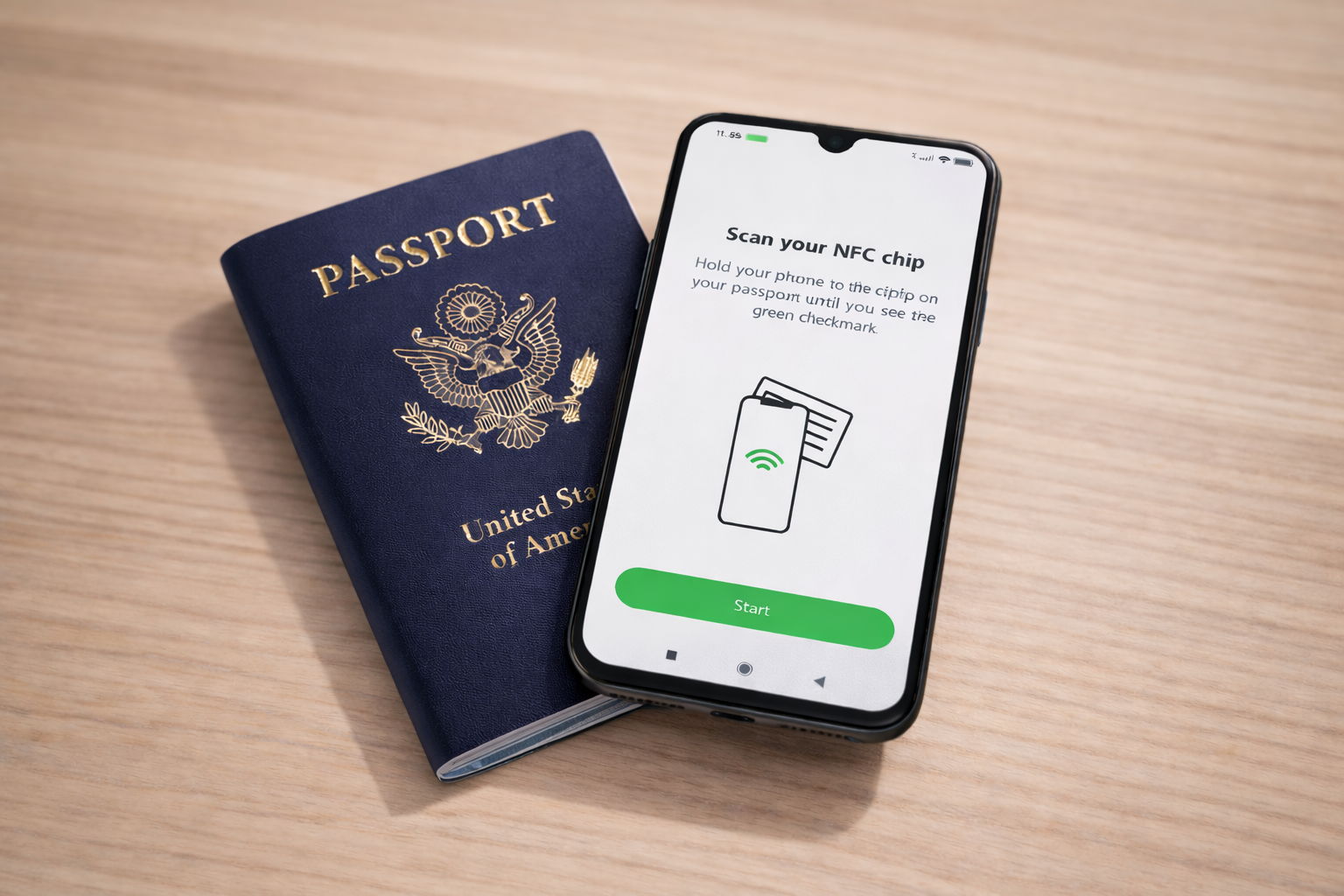
- NFC passports are electronic passports containing an rfid chip that stores biographical and biometric information, readable by any nfc enabled device like a modern smartphone
- If your phone supports Apple Pay, Google Pay, or Tap to Pay, it almost certainly has the nfc capability required to read a passport chip
- Biometric passports issued since the mid-2000s (EU since 2006, US since August 2007) contain an embedded nfc chip marked by a distinctive symbol on the cover
- This guide walks you through checking phone and passport compatibility, positioning for a successful nfc scan, and solving the most common errors
- NFC passport reading follows ICAO Doc 9303 standards and is widely used by border control, KYC providers, and identity verification apps for secure document authentication
What Is an NFC Passport (E‑Passport)?
An NFC passport—also called a biometric passport or electronic passport—is a machine readable travel document containing an nfc chip embedded within its cover or data page. These icao compliant identity documents follow the international ICAO Doc 9303 standard, which defines how the chip stores and transmits data to authorized readers.
Here’s what you need to know about the technology:
- NFC stands for Near Field Communication, a form of short-range wireless communication that enables data exchange between the passport and a reader at distances of approximately 4 centimeters or less
- The embedded chip stores the document holder’s data including name, date of birth, passport number, expiry date, and nationality
- Most chips also contain a high-resolution digital facial image, and some countries include fingerprints or iris data as additional biometric information
- The technology evolved from rfid technology but offers enhanced security through its limited range and encryption protocols
E passports were introduced across many countries between 2004 and 2010. The European Union mandated biometric passports from 2006, while the United States began issuing electronic passports in August 2007. The United Kingdom rolled out biometric documents starting in 2006 as well.
Today, more than 150 countries issue NFC passports. You’ll encounter them at airport e-gates, in mobile identity document verification apps, and during remote customer onboarding processes for banks and other services.
Check If Your Phone Supports NFC Passport Reading
A built-in nfc reader is mandatory to scan an NFC passport. Without nfc capability, your device simply cannot communicate with the chip.
The fastest way to confirm NFC support is to check whether your phone can make contactless payments:
| Payment Feature | NFC Support |
|---|---|
| Apple Pay enabled | Yes |
| Google Pay enabled | Yes |
| Samsung Pay (NFC mode) | Yes |
| Tap to Pay available | Yes |
If your smartphone handles contactless payments, it has the hardware needed for nfc reading of passports.
Checking Your Device Settings
On Android:
- Open Settings
- Navigate to Connected devices or Connections
- Look for an NFC toggle and ensure it’s enabled
On iPhone:
- NFC is enabled by default on iPhone 7 (2016) and newer models
- No manual toggle is required—the phone automatically activates NFC when an app requests it
If you’re uncertain about your specific model, search for your device name plus “NFC” on the manufacturer’s website. For example, searching “Pixel 7 NFC” or “iPhone 13 NFC” will confirm compatibility.
Most iPhones from iPhone 7 onward and most mid-range Android phones released after 2015 include NFC hardware suitable for passport chip reading.
Confirm That Your Passport Has an RFID/NFC Chip
NFC scanning only works with biometric passports that contain an rfid chip. Older, non-electronic passports cannot be read via NFC regardless of your phone’s capabilities.
The quickest compatibility check: Look for the e-passport symbol on your passport’s front cover. This symbol appears as a small rectangle with a centered circle, typically printed at the bottom of the cover.
| Country/Region | E-Passport Introduction |
|---|---|
| European Union | 2006 |
| United States | August 2007 |
| United Kingdom | 2006 |
| Canada | 2013 |
| Australia | 2005 |
If your passport was issued before these dates, it may not contain a chip.
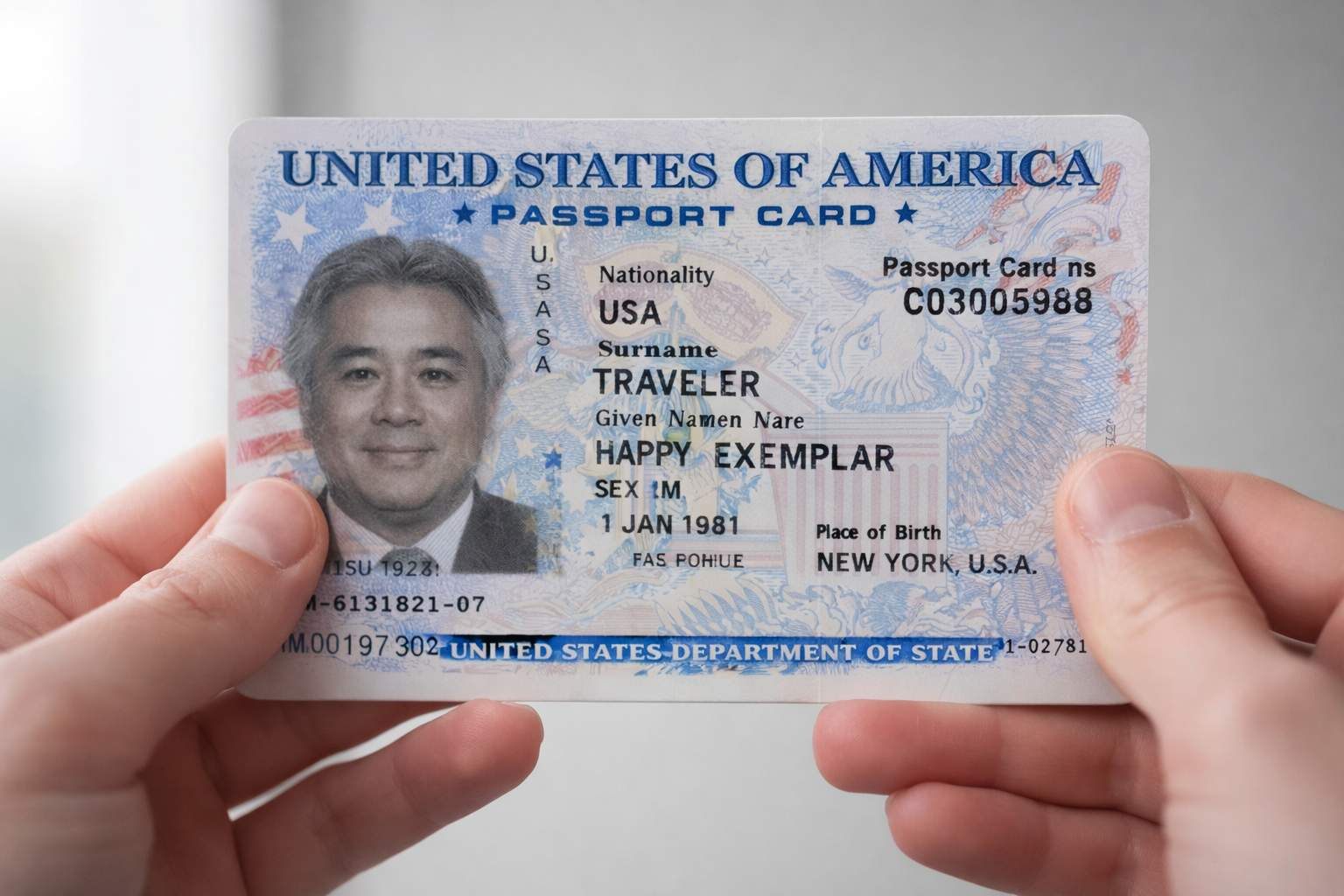
Some countries also issue identity document cards with NFC chips that work similarly:
- Many EU national eID cards contain readable chips
- Electronic driving licenses like dutch driving licenses (issued since November 2014) include NFC functionality
- Passport cards in certain countries may also contain chips
If your document lacks the e-passport symbol and predates your country’s biometric rollout, NFC reading won’t be possible. You’ll need to use alternative methods like photo capture or manual entry for verification.
Where Is the NFC Chip Located in the Passport?
Chip location varies by issuing country and passport series. Getting the correct placement of your phone over the chip is crucial for a fast, reliable scan.
Common chip locations include:
- Front or back cover: Many modern passports have the chip laminated into the cover itself. Start by holding your phone flat against the closed cover.
- Data page or photo page: Some passports embed the chip on or under the data page containing your photograph. Try scanning with the passport opened to this page.
- Dedicated chip page: Certain passports include a polycarbonate page specifically housing the chip.
Be aware that some passport covers contain RF shielding that blocks NFC signals from one side. If scanning the outside of the cover fails, try the inside.
Move your phone slowly over the cover or data page—especially around the center and lower edge—until you feel a vibration or see an on-screen prompt confirming chip detection.
Positioning Your Phone for a Successful NFC Scan
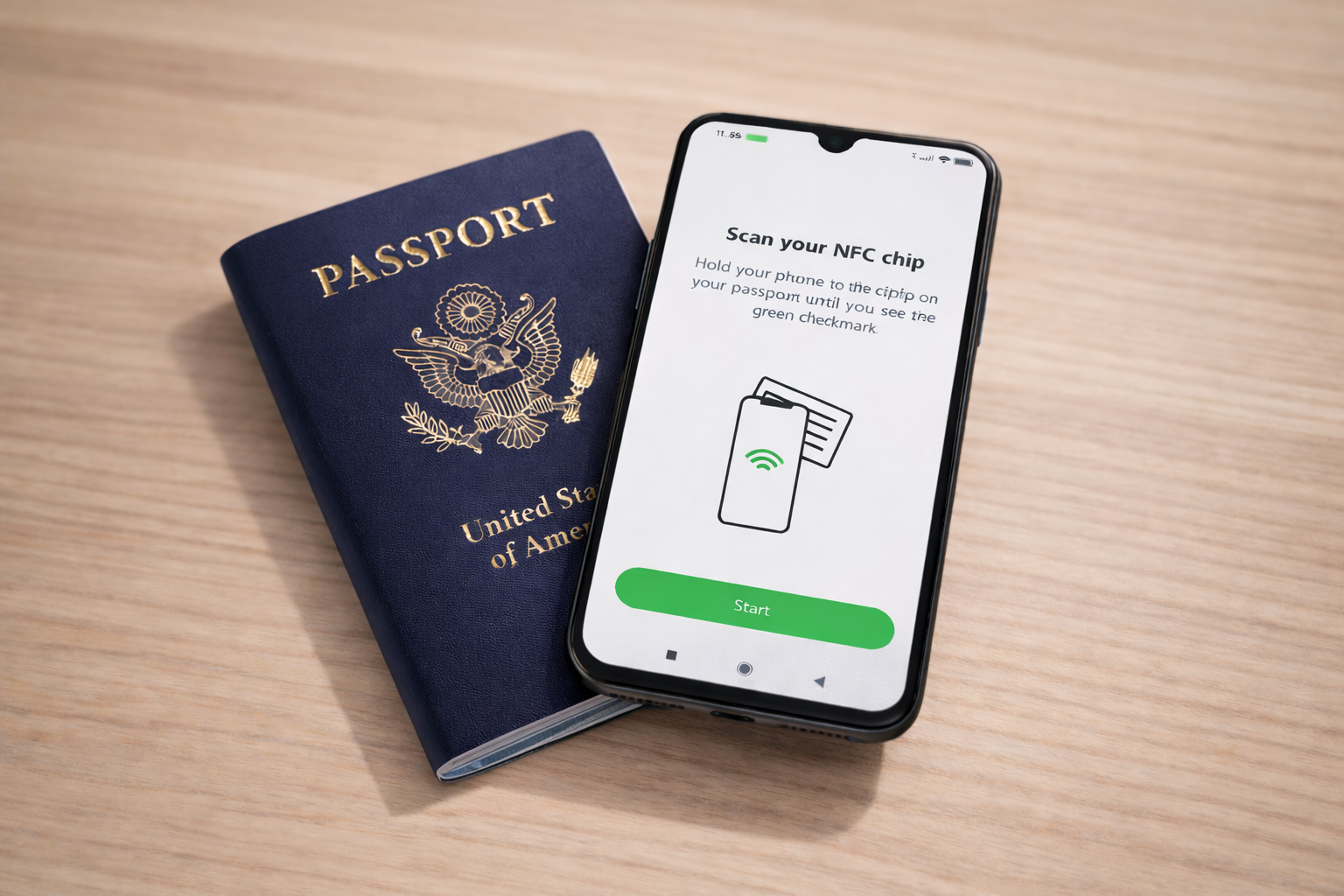
Getting the positioning right is often the difference between a quick verification and repeated failures:
- Remove obstructions: Take off thick cases, metal covers, or anything that might block the NFC signal. Magnetic wallet attachments are particularly problematic.
- Hold flat and still: Position your phone parallel to the passport, not at an angle. The nfc reader antenna is usually located near the top or center back of the device.
- Make contact: Ideally, your phone should touch the passport directly. Place the document on a flat surface and rest your phone on top.
- Be patient: Reading the chip’s data takes anywhere from 3 to 20 seconds depending on the app and device speed. Don’t move until you see a progress indicator or feel haptic feedback.
- Wait for confirmation: Only reposition your phone after visual or haptic feedback indicates the read attempt has completed or failed.
Step‑by‑Step: How to Scan an NFC Passport with Your Phone
This walkthrough applies to most verification flows, whether you’re using a banking app, an identity platform, or a dedicated nfc passport reader app.
Step 1: Open the verification app
Launch your identity verification app and select the option for passport scanning or NFC scan. Many apps using verification technology will guide you through the process.
Step 2: Capture the Machine Readable Zone
Most apps first use the camera to scan the machine readable zone on the data page. The app optically scans this section because the code contains your passport number, date of birth, and expiry date—data required to unlock the chip according to ICAO standards.
Hold your passport open to the photo page and position it within the camera frame. Ensure good lighting and hold steady until the app confirms successful capture.
Step 3: Position for NFC reading
After MRZ capture, the app will prompt you to place your phone on the passport. Close the passport and place it on a flat surface with the front cover facing up. Rest your phone on top, centered over the suspected chip location.
Step 4: Wait for chip authentication
The app reads document information including biographical data and the digital facial image. During this process, the software performs security checks:
- Passive authentication verifies the digital signature to confirm the data hasn’t been tampered with since issuance
- Chip authentication or active authentication confirms the chip itself is genuine and not a clone
Step 5: Review detailed results
Once complete, the app displays a confirmation screen. You may see a preview of the photo read from the chip alongside a success message indicating the document has been verified.
What Happens to Your Data During NFC Passport Reading?
Understanding data handling helps you make informed decisions about which apps to trust.
Data access follows strict standards:
Apps following ICAO and national regulations read only standardized data groups. DG1 contains biographical data while DG2 stores the facial image. The app verifies the digital signature to confirm an official authority issued the document.
Processing location varies by app:
- Some apps perform all verification locally on your device without sending data to external servers. This provides maximum privacy.
- Commercial KYC flows typically upload chip data securely to the provider for automated checks, using strong encryption in transit.
NFC communication is inherently secure:
The short range of nfc technology (just a few centimeters) combined with time-limited sessions makes eavesdropping significantly harder than with long-range systems. The reading process requires network access only if the app uploads data for verification—the chip itself doesn’t connect to the internet.
Only scan passports in trusted apps from your bank, government portal, or employer’s identity platform. Avoid unknown or unofficial apps requesting passport NFC scans.
Note that privacy statement policies vary by provider, and data handling is typically provided as is according to each organization’s terms.
Troubleshooting Common NFC Passport Scan Problems
Even with correct positioning, scans sometimes fail. Here’s how to diagnose and fix the most common issues.
Typical causes of scan failure:
| Issue | Solution |
|---|---|
| NFC disabled (Android) | Enable in Settings > Connections > NFC |
| Thick phone case | Remove case entirely |
| Metal objects nearby | Move away from keys, coins, laptop |
| Battery saver mode | Disable power saving features |
| Moving during scan | Hold completely still for 15+ seconds |
| Damaged passport chip | Try different positions; may need replacement |
Troubleshooting steps:
- Check NFC is enabled: On Android, toggle NFC off and back on. Restart the device if needed. iOS manages NFC automatically, but a restart can still help.
- Close competing apps: Other apps using NFC or payment features can interfere. Close background applications before scanning your passport.
- Try different positions: Scan the front cover (outside and inside), the back cover, and the data page. Hold your phone flat and still for at least 10-20 seconds per attempt.
- Adjust your environment: Scanning near metal surfaces or electronic devices can cause interference. Move to a different location with fewer electronics.
Many verification flows automatically skip NFC after a fixed number of failed attempts—often three—and continue with alternative methods like a selfie or liveness check. If the app provides an error or help button during scanning, use those controls rather than force-closing. This preserves logs that support teams can analyze.

When to Contact Support or Try Another Device
When multiple careful attempts fail, escalation may be necessary.
Try a different device:
Borrow an nfc enabled device from a family member or colleague. Switching from an older Android handset to a newer phone—or trying an iPhone with Apple Pay enabled—can rule out device-specific issues. Some phones have weaker NFC antennas or software compatibility problems with certain apps.
Contact the service provider:
If errors persist, reach out to your bank, employer, or platform’s support team. Provide:
- Device model and OS version
- Country of passport issuance
- Approximate time and date of failed attempts
- Any error messages displayed
Consider passport condition:
Passports issued in the mid-2000s may have chips that have degraded over time. Physical wear, bending, or water exposure can damage the embedded chip. If your passport is approaching its expiry date and NFC consistently fails, renewal may be the simplest solution.
Alternative verification methods:
Government portals and immigration authorities often provide alternatives such as visiting a service center in person or using a desktop-based card reader. Check official guidance or helpline numbers for your particular purpose.
Future of NFC Passport Verification
NFC passport verification has already become standard at many airports and in remote onboarding flows. The trajectory points toward even broader adoption.
Market growth reflects demand:
The NFC market reached approximately US$24.8 billion in 2022, with forecasts projecting strong growth at a CAGR in the low-to-mid teens toward 2032. Identity and access use cases drive a significant portion of this expansion.
Current deployment scale:
- More than 100 countries had deployed e-passports and e-gates by the early 2020s
- Airlines and border agencies are piloting Digital Travel Credentials (DTCs)
- Organizations like ICAO and IATA are developing standards for mobile travel documents
Technology evolution:
NFC will continue underpinning secure document reading even as verification adds layers of biometrics. Face recognition, liveness detection, and AI-based fraud detection now work alongside nfc chip verification to create comprehensive identity assurance.
Digital wallets and mobile IDs:
Emerging government-backed mobile ID apps and smartphone digital wallets may eventually store passport-equivalent credentials. However, these systems will likely rely on NFC-read chip data during enrollment to verify authenticity before creating digital versions.
The ability to verify an identity document using just a smartphone—without specialized equipment—positions NFC as foundational technology for the next decade of identity verification.
FAQ
Can I scan my NFC passport on a laptop or desktop computer instead of a phone?
Yes, but only if you have a compatible external NFC/RFID reader and dedicated software that supports ICAO e-passport reading. Most standard laptops do not include an NFC reader, so consumers typically rely on smartphones. Specialized readers used by border control and corporate access systems offer this functionality but require specific software resources and configuration.
Will the border guard know if I’ve scanned my passport with a mobile app?
No, the passport chip does not record a history of which apps or devices have read it. The chip only contains signed data issued by your government. However, the organization whose app you use—such as a bank or employer—will know that you completed their verification flow and may keep logs according to their privacy statement.
Does scanning my passport with NFC damage the chip or reduce its lifespan?
No, normal NFC reading is contactless and non-destructive. The chip is designed to be read thousands of times over the passport’s validity period, including by e-gates and inspection devices at border control. Physical damage such as bending, water exposure, or heavy creasing poses a much greater risk to chip failure than frequent scanning.
Can someone skim my NFC passport through my bag without my consent?
In practice this is very difficult. Many modern passports include RF-shielding in the cover that blocks NFC when closed. Additionally, NFC requires very close proximity (a few centimeters) and knowledge of MRZ data to gain access to the chip’s contents. For extra peace of mind, users can carry passports in RFID-blocking sleeves or wallets when traveling.
Is the photo read from the NFC chip always the same as the printed photo in my passport?
Yes, it’s derived from the same official enrollment image, but the digital version stored on the chip is typically higher quality and hasn’t been degraded by printing. Verification apps often compare your live selfie to this chip photo because it’s resistant to tampering—unlike a potentially altered scan of the printed page. This is one reason chip-based verification provides stronger identity assurance than photo-only methods.


